
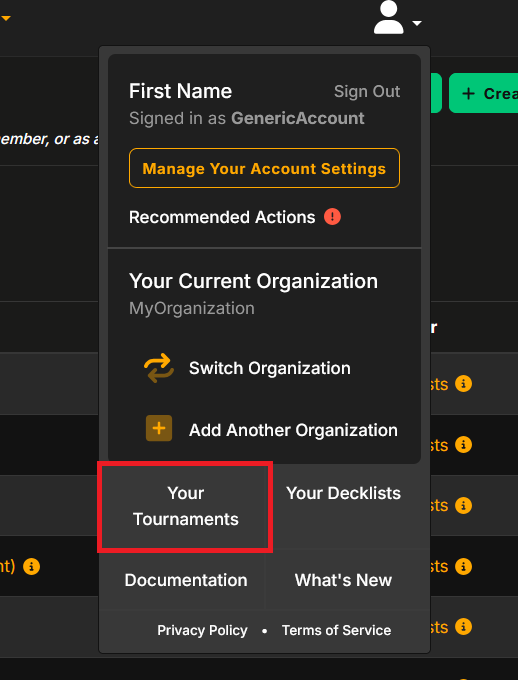
- After signing in to your Melee.gg account, click “Your Tournaments” by clicking on the profile icon in the top-right corner of Melee.gg.
- Click “+ Create a Tournament” in the top right corner of your screen.
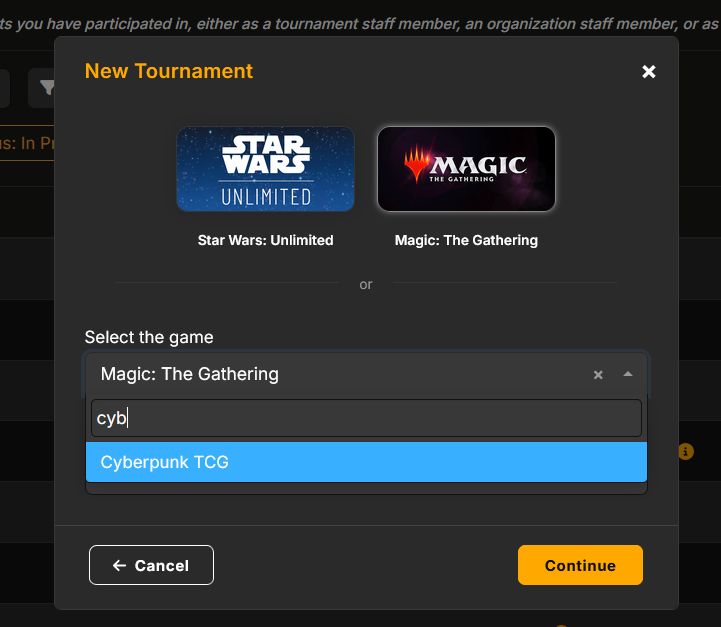
- Select the “Cyberpunk TCG” game and click “Continue.”
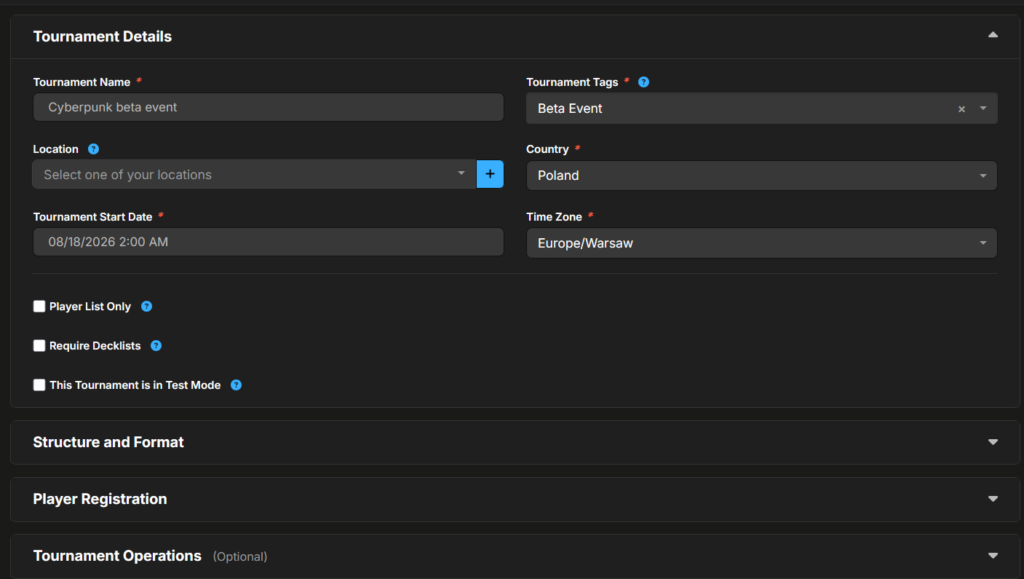
- Fill in all the relevant information under the “Tournament Details,” “Structure and Format,” and “Player Registration” tabs. Select the structure and format that fit best the game you are planning to run (Contructed, Sealed, etc.).
If you want your event to be visible in the “Find Events” section on Melee.gg, you will need to add the location in “Tournament Details”. The locations and venues can be added and edited in the Organization Dashboard.
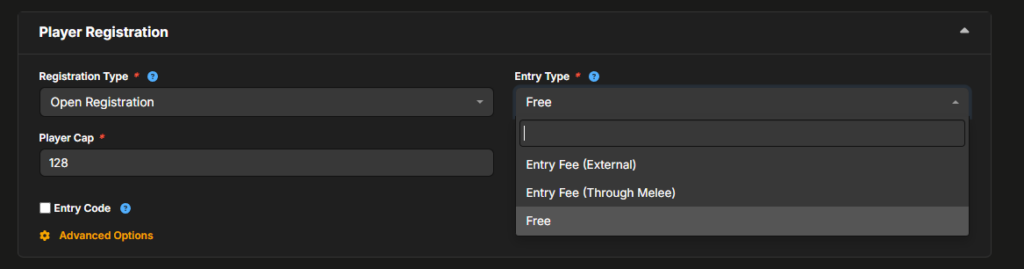
- Player Registration – this part covers strictly the registration type and potential fees. “Registration Type” gives you control over who can join the event: “Open Registration” allows everyone to register, and “Closed Event” limits it to only a selected group of Players possessing the access code.
In case of a free event with no registration fees, you can leave the “Entry Type” as free. If you plan on taking a fee via Melee.gg platform, select “Entry Fee (through Melee)”. If you plan on taking the entry fee via another platform or at your store (be it cash or card payments), select “Entry Fee (external)”.
- We strongly encourage you to fill in the “Player Communication” section during the tournament creation. This is the place where you can include any other pertinent information that potential players might find useful, including your store’s registration process, schedules, prizes, special requirements, rules (either your store’s rules or a specific event rules) and anything else that comes to your mind that you want players to know beforehand.
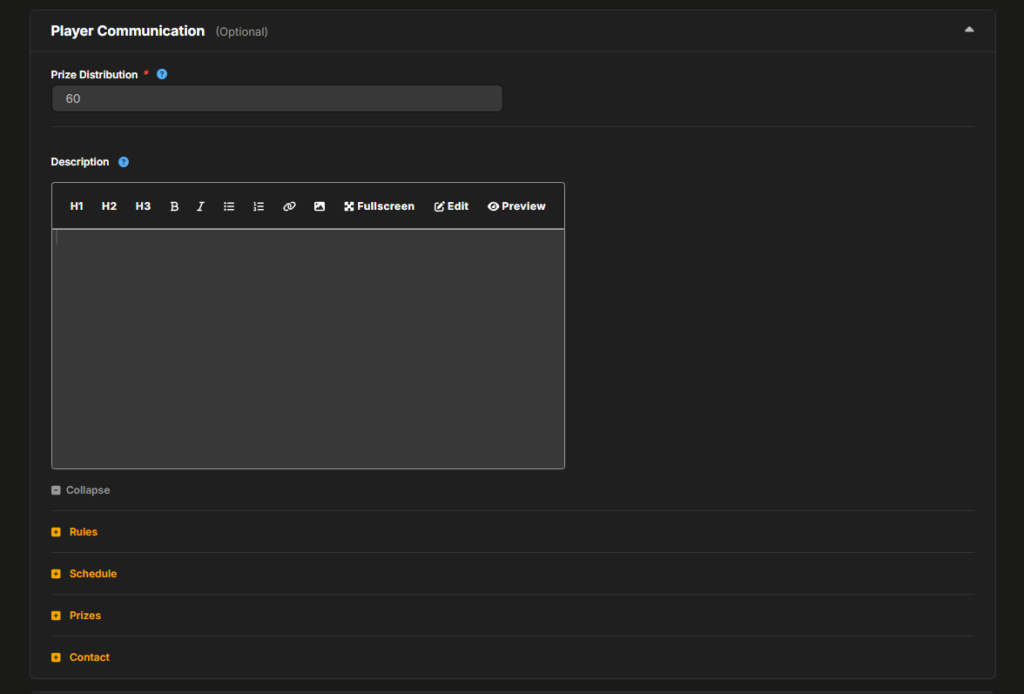
- Once you are satisfied with all the details of the tournament creation, hit “Create Tournament” button.
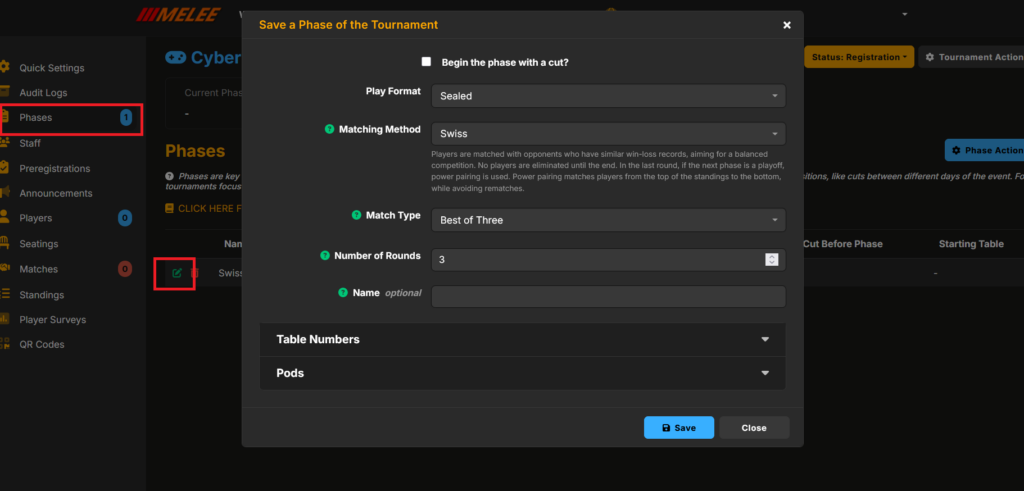
- You can also confirm your tournament structure and format within the “Tournament Controller” screen. Proceed to “Phases” on the left and verify the tournament structure there.
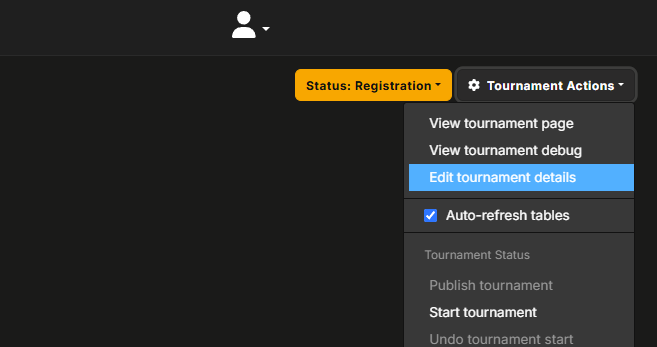
To modify any previously provided details in the description of your event, enter “Edit tournament details” from the Tournament Dashboard.
- Once the structure and details are confirmed, click on “Tournament Actions” in the top right of the screen and select “Publish Tournament.”
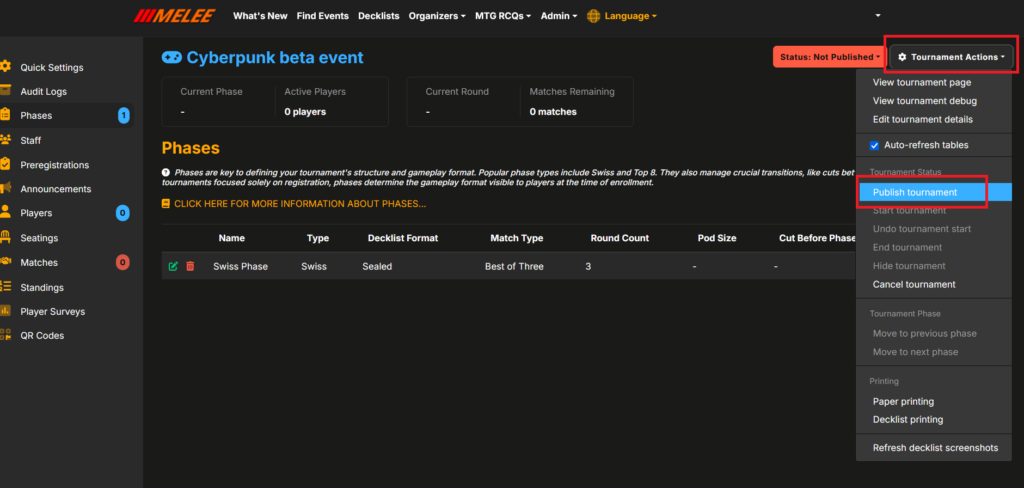
- Under “Tournament Actions”, click on “View Tournament Page” to access the public page ready to be shared on your social channels and with players.
- For more information about the details and advanced options on tournament creation, you can refer to help.melee.gg or contact the customer support team via email at contact@melee.gg or on the Melee Discord Server.